
How to Set Up Google Analytics 4: Complete Step-by-Step Guide
Table of Contents
Create Your GA4 Property and Data Stream
Knowing how to set up Google Analytics 4 correctly from the start saves months of lost data and frustration. GA4 is the standard analytics platform for every website in 2026, yet a surprising number of businesses in Singapore still have incomplete or misconfigured installations that undermine their ability to make data-driven decisions.
Sign in at analytics.google.com and open the Admin panel. Click Create Property, enter a name that clearly identifies your site such as “MarketingAgency.sg — Production,” and set the reporting time zone to GMT+08:00 Singapore with currency as Singapore Dollar. Select your industry category and business objectives, then click Create. Your property is live but not yet collecting data.
Next, create a web data stream. Select Web as the platform, enter your website URL and give the stream a descriptive name. Click Create stream. GA4 generates your Measurement ID in the format G-XXXXXXXXXX. This identifier is what you will install on your site. Accurate analytics underpin every smart marketing decision: without properly configured tracking, your digital marketing campaigns are effectively flying blind.
Install the Tracking Code on Your Website
There are three installation methods, each suited to different technical situations. Google Tag Manager is the recommended approach for most businesses. Create a GA4 Configuration tag in GTM, enter your Measurement ID, set the trigger to All Pages and publish your container. GTM provides flexibility to add, modify and debug tags without touching source code.

If you do not use GTM, copy the global site tag snippet provided by GA4 and paste it into the head section of every page, immediately after the opening head tag. For WordPress sites, add it to your theme’s header file or use a header scripts plugin. The third option is CMS integration: platforms like WordPress with Site Kit by Google, Shopify and Wix offer built-in GA4 connection fields that require no code.
After installation, verify data is flowing by visiting your website in a new tab and checking the Realtime report in GA4. You should see at least one active user within 30 seconds. If your website serves both www and non-www versions, ensure the correct domain is listed in your stream settings. Configure cross-domain measurement if you operate multiple domains that should track as one property, and add internal traffic rules to exclude your office IP address from the data.
Enable and Configure Enhanced Measurement
Enhanced measurement automatically tracks common user interactions without additional code, making it one of GA4’s most powerful features. Open your web data stream settings and ensure the Enhanced measurement toggle is on.
GA4 will automatically capture: page views on every page load, scroll events when users reach 90 per cent of a page, outbound clicks tracking links that leave your domain, site search queries if your site has a search function, video engagement for embedded YouTube videos including start, progress and completion events, file downloads when users download PDFs, spreadsheets or documents, and form interactions tracking when users begin and submit forms.
This automatic tracking provides a solid baseline of user behaviour without any development work. For sites using your content marketing resources as downloadable assets, file download tracking is particularly valuable for measuring lead magnet performance. You can toggle individual events on or off by clicking the gear icon next to Enhanced measurement. For most websites, leave all events enabled.
Set Up Conversions and Custom Events
Conversions are the most important actions visitors take on your site. Configuring them correctly is essential for measuring marketing success and optimising your Google Ads campaigns.

In GA4, any event can be marked as a conversion. Navigate to Admin then Events and toggle Mark as conversion for key events: form_submit for contact forms, purchase for e-commerce transactions, generate_lead for lead completions, and sign_up for registrations. If the event you need does not exist, click Create event and define conditions. For example, create an event where page_location contains “/thank-you” and name it lead_form_complete.
For e-commerce, implement recommended events including view_item, add_to_cart, begin_checkout and purchase through your data layer. Custom events cover interactions specific to your business. Use GA4’s interface for simple page-based events or GTM for complex tracking such as specific button clicks, scroll milestones or dynamic form completions. Follow GA4 naming conventions: lowercase, underscores, descriptive names like cta_click or brochure_download. Register important parameters as custom dimensions in Admin then Custom definitions so they appear in reports.
For Singapore businesses, track WhatsApp click-to-chat events as WhatsApp is a primary communication channel. Create a custom event firing when users click your WhatsApp link, including page URL as a parameter to identify which pages drive the most enquiries.
Create Audiences for Remarketing and Analysis
GA4 audiences segment users based on specific criteria for both reporting and remarketing when linked to advertising platforms. Navigate to Admin then Audiences and click New audience.
Essential audiences for every Singapore business include: engaged visitors who visited at least three pages or spent more than two minutes on site, cart abandoners who triggered add_to_cart but did not purchase within seven days, blog readers whose page path contains /blog/, high-value customers who completed purchases above a specific threshold, and Singapore-based visitors filtered by country to isolate local traffic from international visits.
Set membership duration wisely: 30 days works for most retargeting, 7 days for high-intent audiences and 90 days for broad awareness campaigns. GA4 audiences are not retroactive from creation date, so build your key audiences as early as possible. These audiences feed directly into Google Ads and Facebook advertising retargeting campaigns once the platform links are configured.
Link GA4 to Google Ads
Linking GA4 to Google Ads unlocks the ability to import conversions for bid optimisation, use GA4 audiences for remarketing, and view ad performance data within your analytics reports.
Navigate to Admin then Google Ads Links and click Link. Select the Google Ads account you want to connect, requiring admin access to both platforms. Enable personalised advertising to use GA4 audiences in campaigns, and ensure auto-tagging is active in your Google Ads account for accurate attribution. Then import your GA4 conversion events into Google Ads through Tools then Conversions, selecting the events you marked as conversions.
Once linked, Google Ads data appears in the Acquisition reports broken down by campaign, ad group and keyword, giving you a unified view of paid and organic performance in a single dashboard. For data retention, navigate to Admin then Data Settings and change event data retention to 14 months, enabling year-over-year comparisons in Explorations. Activate the internal traffic filter you configured earlier and consider enabling Google signals for cross-device data and demographic insights.
Navigate the Reports That Drive Decisions
With everything configured, familiarise yourself with the reports that inform marketing decisions. GA4’s reporting structure differs significantly from legacy analytics platforms.
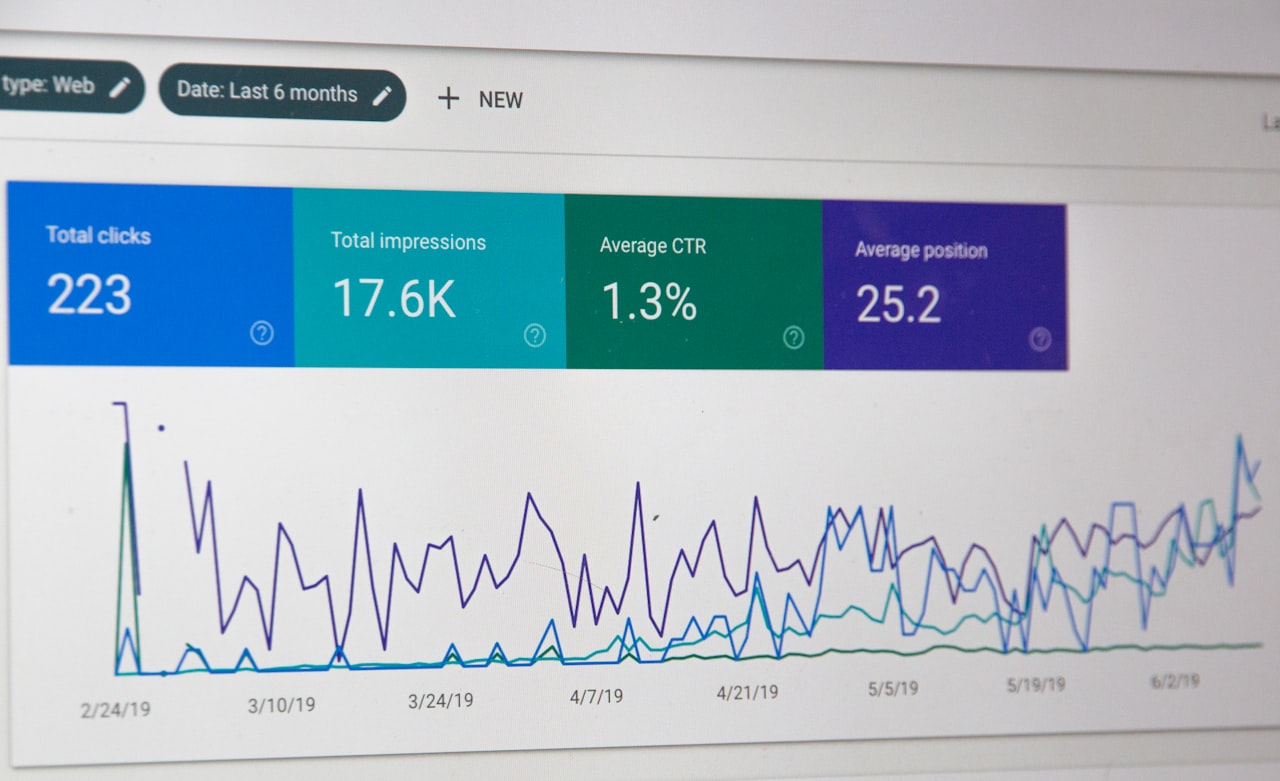
The Realtime report shows current users, their locations, pages viewed and events triggered, useful for verifying implementations and monitoring launches. Acquisition reports split into User acquisition showing how new users discover your site and Traffic acquisition showing all session sources. Pay attention to default channel groupings: organic search, paid search, social, direct, referral and email. These reports are essential for evaluating SEO and advertising performance.
Engagement reports reveal your most viewed pages, average engagement time and event counts. Monetisation reports track e-commerce revenue, purchase journeys and product performance. The Explorations section is GA4’s custom reporting tool for funnels, path analyses and cohort studies. Create a funnel exploration visualising your conversion journey, such as homepage to service page to contact page to form submission, to reveal where users drop off and where optimisation efforts should focus.
Set up a regular cadence: review key metrics weekly, produce a comprehensive monthly report, and use the Library section to customise your report navigation based on what matters most to your business.
Frequently Asked Questions
How long does it take for GA4 to start showing data?
Realtime reports show data within seconds of installation. Standard reports typically populate within 24 to 48 hours. Machine learning insights may take several days or weeks to generate meaningful data, particularly for lower-traffic sites.
Can I use GA4 alongside Google Tag Manager?
Yes, and this is the recommended approach. GTM manages all tracking tags including GA4, providing flexibility to add, modify and debug without touching your website’s source code. It also simplifies implementing custom events and advanced tracking.
Do I need to worry about PDPA compliance when using GA4 in Singapore?
While GA4 primarily collects anonymised data, IP addresses and device identifiers can be considered personal data under PDPA. Implement a clear privacy policy disclosing your use of analytics and consider adding a cookie consent mechanism, especially if you serve customers in the EU where GDPR applies.
What is the difference between events and conversions in GA4?
Everything in GA4 is tracked as an event. A conversion is simply an event you have flagged as particularly important. You mark events as conversions in the Admin panel to prioritise them in reports and make them available for import into Google Ads for bid optimisation.
How do I track phone calls in GA4?
Create a custom event in GTM that fires when users click tel: links. Set the trigger to match clicks on elements containing “tel:” in the href attribute. For tracking manually dialled calls originating from your website, integrate a third-party call tracking platform that feeds data into GA4 via the Measurement Protocol.
Should I change the default data retention period?
Yes. Change event data retention from the default 2 months to 14 months in Admin then Data Settings. This does not affect standard reports but allows year-over-year comparisons in the Explorations section, which is essential for meaningful analysis.
How do I verify that my GA4 setup is working correctly?
Use the Realtime report to confirm page views fire when you browse your site. Use the DebugView in GA4 with GTM’s Preview mode to verify custom events fire with correct parameters. Check the Events report after 24 hours to confirm all expected events are being collected. Test every conversion by completing the action yourself.
What should I do if data is not appearing in my reports?
Verify the Measurement ID matches between your GA4 property and your website code. Check that the tracking script loads on all pages using browser developer tools. Ensure internal traffic filters are not accidentally excluding all traffic. Confirm that ad blockers are not preventing the GA4 script from executing during your testing.