
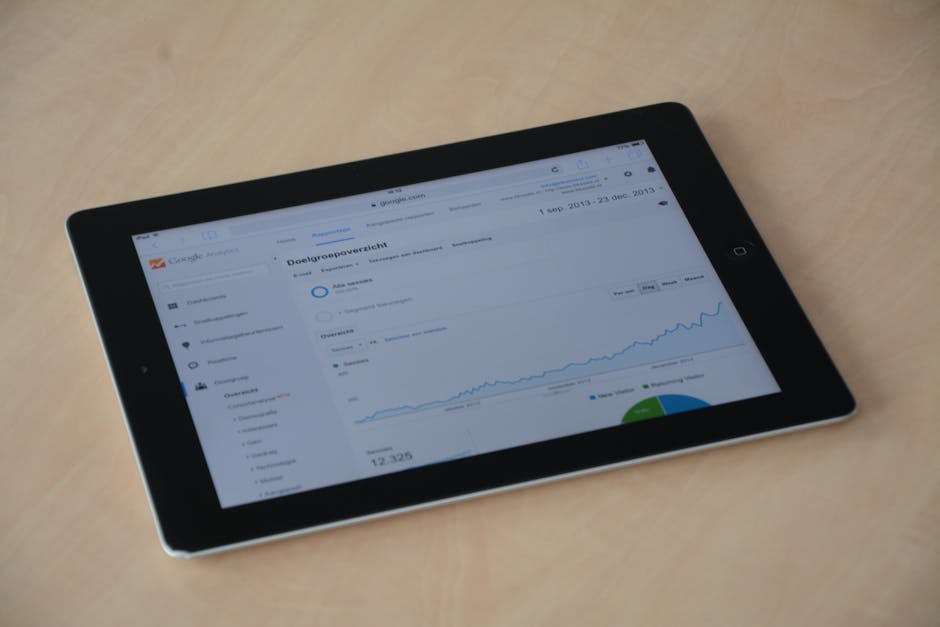
PageSpeed Insights Tutorial: Improve Your Website Speed
Website speed is no longer a nice-to-have — it is a ranking factor, a conversion factor, and a user experience fundamental. Google PageSpeed Insights (PSI) is the go-to free tool for measuring how fast your website loads and identifying exactly what is slowing it down. A few targeted fixes based on PSI recommendations can transform a sluggish website into one that loads in under two seconds.
For Singapore businesses, site speed is especially critical. The local market is mobile-first, with the majority of web traffic coming from smartphones on 4G and 5G connections. Users in Singapore expect pages to load almost instantly, and research consistently shows that every additional second of load time increases bounce rates by 10 to 20 per cent. Whether you are running an e-commerce store, a corporate website, or a landing page for Google Ads campaigns, speed directly impacts your bottom line.
This pagespeed insights tutorial covers everything you need to know: running your first test, understanding the scores, decoding Core Web Vitals, and implementing the fixes that deliver the biggest performance gains. Let us turn your website into a fast one.
Running a PageSpeed Insights Test
Running a PageSpeed Insights test takes less than a minute and requires no technical setup. Here is how to get started and what to test.
Step 1: Open PageSpeed Insights. Navigate to pagespeed.web.dev in your browser. You will see a simple input field where you enter the URL you want to analyse.
Step 2: Enter your URL. Type the full URL of the page you want to test, including https://. Start with your homepage, then test your most important landing pages, product pages, and blog posts individually. Each page can have very different performance characteristics, so testing only your homepage gives an incomplete picture.
Step 3: Click Analyse. PageSpeed Insights runs two types of analysis simultaneously. First, it checks for field data — real performance measurements collected from actual Chrome users who visited your page over the past 28 days. Second, it runs a lab test using Lighthouse, which simulates a page load on a mid-range mobile device with a throttled 4G connection.
Step 4: Review both data types. Field data (labelled “Discover what your real users are experiencing”) shows how your page actually performs for real visitors. Lab data (labelled “Diagnose performance issues”) provides a controlled test with specific recommendations for improvement. Both are valuable: field data tells you how serious the problem is, while lab data tells you how to fix it.
What to test: Do not limit yourself to your homepage. Test your top 10 most visited pages, your primary conversion pages (contact forms, checkout, product pages), and any landing pages used in paid campaigns. For Singapore businesses running SEO campaigns, test the pages targeting your most important keywords since page speed affects organic rankings.
Understanding Your Scores
PageSpeed Insights presents results using a colour-coded scoring system and detailed metric breakdowns. Understanding what these numbers mean is essential for prioritising your optimisation efforts.
Overall performance score: The headline number ranges from 0 to 100. Scores of 90 to 100 are classified as good (green), 50 to 89 as needs improvement (orange), and 0 to 49 as poor (red). This score is a weighted average of six Lighthouse performance metrics. For most Singapore business websites, achieving a score of 80 or above on mobile is a realistic and impactful target.
The six Lighthouse metrics and their weights:
First Contentful Paint (FCP) measures how quickly the first piece of content appears on screen, weighted at 10 per cent. Aim for under 1.8 seconds. This gives users visual feedback that the page is loading.
Largest Contentful Paint (LCP) measures when the largest visible content element finishes loading, weighted at 25 per cent. This is usually a hero image, video thumbnail, or large text block. Aim for under 2.5 seconds. LCP is a Core Web Vital and a direct ranking factor.
Total Blocking Time (TBT) measures how long the main thread is blocked by JavaScript during page load, weighted at 30 per cent. This is the lab equivalent of Interaction to Next Paint (INP) in field data. Aim for under 200 milliseconds.
Cumulative Layout Shift (CLS) measures visual stability — how much the page content shifts around unexpectedly during loading, weighted at 25 per cent. Aim for a score under 0.1. CLS is a Core Web Vital.
Speed Index measures how quickly the visible area of the page is populated with content, weighted at 10 per cent. Aim for under 3.4 seconds.
Because TBT and LCP carry the highest weights (30% and 25% respectively), improvements to JavaScript execution and largest content loading have the greatest impact on your overall score.
Core Web Vitals Explained: LCP, INP, and CLS
Core Web Vitals are Google’s set of user experience metrics that directly affect search rankings. As of 2026, the three Core Web Vitals are Largest Contentful Paint (LCP), Interaction to Next Paint (INP), and Cumulative Layout Shift (CLS). PageSpeed Insights prominently displays these metrics using field data from real users.
Largest Contentful Paint (LCP) measures perceived loading speed. It marks the point when the page’s main content has likely finished loading. The LCP element is typically the largest image, video, or text block visible in the viewport without scrolling.
Good LCP: 2.5 seconds or less. Needs improvement: 2.5 to 4 seconds. Poor: over 4 seconds.
Common causes of poor LCP include slow server response times, render-blocking CSS and JavaScript, large unoptimised images, and client-side rendering that delays content display. For Singapore websites hosted on local or regional servers (AWS Singapore, Google Cloud asia-southeast1), server response times should already be fast for local visitors. If your hosting is in the US or Europe, consider migrating to a Singapore-region server or using a CDN with local edge nodes.
Interaction to Next Paint (INP) replaced First Input Delay (FID) as a Core Web Vital in March 2024. While FID only measured the delay of the first interaction, INP measures responsiveness throughout the entire page lifecycle by tracking the latency of all click, tap, and keyboard interactions and reporting the worst one (with some outliers excluded).
Good INP: 200 milliseconds or less. Needs improvement: 200 to 500 milliseconds. Poor: over 500 milliseconds.
Poor INP is almost always caused by heavy JavaScript execution that blocks the browser’s main thread. Common culprits include third-party scripts (analytics, chat widgets, advertising tags), complex single-page application frameworks, and unoptimised event handlers. Singapore websites that load multiple tracking pixels and marketing tags are particularly susceptible to INP issues.
Cumulative Layout Shift (CLS) measures visual stability. Every time a visible element shifts position unexpectedly during page load, it contributes to the CLS score. Common triggers include images without specified dimensions, dynamically injected content, web fonts causing text to reflow, and ads or embeds that load asynchronously and push content down the page.
Good CLS: 0.1 or less. Needs improvement: 0.1 to 0.25. Poor: over 0.25.
CLS is the Core Web Vital that most directly frustrates users. When a Singapore shopper tries to tap “Add to Cart” but the button shifts downward because a banner image loaded late, that is a CLS problem — and potentially a lost sale.
Mobile vs Desktop Performance
PageSpeed Insights provides separate scores for mobile and desktop. Understanding the differences and prioritising correctly is essential for Singapore websites.
Why mobile scores are typically lower: The Lighthouse lab test simulates a mid-range mobile device with CPU throttling (approximately 4x slower than a typical laptop) and a simulated 4G connection. This creates much harsher conditions than the desktop test, which simulates a standard computer on a fast connection. It is normal for mobile scores to be 20 to 40 points lower than desktop scores.
Why mobile matters more: In Singapore, mobile devices account for over 70 per cent of web traffic for most consumer-facing websites. Google uses mobile-first indexing, meaning it primarily evaluates the mobile version of your site for ranking purposes. If your mobile PageSpeed score is poor, it directly impacts your organic search visibility regardless of how fast your desktop version loads.
Common mobile-specific issues: Large hero images that are not responsive and serve the same high-resolution file to mobile devices. JavaScript-heavy navigation menus that block the main thread on slower mobile processors. Pop-ups and interstitials that cause layout shifts on smaller screens. Third-party chat widgets and cookie consent banners that load too many additional resources.
Mobile optimisation priorities: Serve appropriately sized images using the srcset attribute and modern formats like WebP or AVIF. Minimise and defer non-critical JavaScript. Use CSS media queries to load only the styles needed for the current viewport. Implement lazy loading for images and videos below the fold. Test on actual mobile devices in Singapore, not just through emulated conditions, to understand real-world performance.
Desktop should not be ignored: While mobile takes priority, desktop performance still matters, especially for B2B Singapore businesses where decision-makers often browse on office computers. A slow desktop experience during business hours can cost you leads and credibility. Aim for a desktop score of 90 or above and a mobile score of 70 or above as practical targets for most Singapore business websites.
Fixing Common Speed Issues
PageSpeed Insights provides an Opportunities section listing specific issues with estimated time savings. Here are the most impactful fixes for Singapore websites.
Optimise images: This is almost always the biggest opportunity. Compress images using tools like Squoosh, TinyPNG, or ShortPixel. Convert images to WebP or AVIF formats, which offer 25 to 50 per cent smaller file sizes than JPEG and PNG with comparable quality. Serve responsive images using the <picture> element or srcset attribute. Add explicit width 和 height attributes to all <img> tags to prevent layout shifts.
Eliminate render-blocking resources: CSS and JavaScript files in the <head> block page rendering until they finish downloading and executing. Inline critical CSS (the styles needed for above-the-fold content) directly in the HTML and defer the rest. Add the defer 或 async attribute to non-essential script tags. Move analytics and marketing tags below the fold content or load them after the main content renders.
Reduce JavaScript execution time: Heavy JavaScript is the primary cause of high TBT and poor INP scores. Audit your scripts using Chrome DevTools’ Performance panel. Common culprits include jQuery (if not essential, remove it), excessive Google Tag Manager containers, multiple analytics scripts, and unused JavaScript from page builders or themes. For WordPress sites, deactivate unused plugins and consider a lightweight theme.
Enable text compression: Ensure your server delivers CSS, JavaScript, and HTML files using Gzip or Brotli compression. Most modern hosting providers enable this by default, but some Singapore-based shared hosting plans may not. Check by inspecting response headers for content-encoding: gzip 或 content-encoding: br.
Implement browser caching: Set appropriate Cache-Control headers for static assets like images, CSS, and JavaScript files. A cache duration of 30 days to one year for static assets reduces load times for returning visitors significantly. For dynamic content, use shorter cache durations or no-cache headers.
Preconnect to required origins: If your site loads resources from third-party domains (fonts from Google Fonts, scripts from CDNs, images from media servers), add <link rel="preconnect"> tags for those domains. This establishes the connection early and reduces latency when the resources are eventually requested.
Lazy load below-fold content: Use the native loading="lazy" attribute on images and iframes that appear below the initial viewport. This prevents the browser from downloading resources that the user has not scrolled to yet, significantly reducing initial page load time. Do not lazy load above-the-fold content, especially your LCP element.
Advanced Optimisation Techniques
Once you have addressed the common issues, these advanced techniques can push your performance scores even higher.
Use a Content Delivery Network (CDN): A CDN serves your static assets from edge servers located close to your users. For Singapore businesses, Cloudflare (which has a Singapore PoP), AWS CloudFront, and Google Cloud CDN all have local nodes that reduce latency for Singapore visitors. A CDN also helps if you have significant traffic from neighbouring countries like Malaysia, Indonesia, and Thailand.
Implement critical rendering path optimisation: Identify the minimum CSS and JavaScript needed to render above-the-fold content and inline it directly in the HTML. Tools like Critical (npm package) can automate this process. Load the remaining CSS asynchronously using <link rel="preload" as="style"> with an onload handler.
Optimise web fonts: Web fonts are a common source of both LCP delays and CLS issues. Use font-display: swap to show fallback text immediately while the custom font loads. Subset your fonts to include only the characters you actually use. Self-host fonts rather than loading them from Google Fonts to eliminate the extra DNS lookup and connection. Preload your primary font file using <link rel="preload" as="font" type="font/woff2" crossorigin>.
Code splitting and tree shaking: If your site uses a JavaScript framework like React, Vue, or Next.js, implement code splitting to load only the JavaScript needed for the current page. Tree shaking removes unused code from your bundles. These techniques can reduce JavaScript payload by 50 per cent or more on content-heavy websites.
Server-side rendering (SSR) or static generation: For JavaScript-heavy sites, server-side rendering or static site generation delivers fully rendered HTML to the browser, dramatically improving FCP and LCP. If your Singapore business website is built on a framework like Next.js, consider using static generation for content pages and SSR for dynamic pages. This approach aligns with best practices for modern web design.
Monitor continuously: Site speed is not a one-time fix. New content, plugin updates, and third-party script changes can degrade performance over time. Set up regular monitoring using Google Search Console (which reports Core Web Vitals), web.dev Measure, or paid tools like SpeedCurve. Schedule monthly performance audits as part of your ongoing digital marketing management.
Complementary Speed Testing Tools
While PageSpeed Insights is the essential starting point, combining it with other tools gives you a more complete performance picture.
Google Search Console: "(《世界人权宣言》) Core Web Vitals report in Search Console shows how your pages perform at scale, categorising all your URLs as Good, Needs Improvement, or Poor for each Core Web Vital. This is the most authoritative view of your site’s speed performance because it uses the same data Google uses for ranking decisions.
Chrome DevTools: The Performance panel in Chrome DevTools provides granular, frame-by-frame analysis of page loading. You can see exactly when each resource loads, which scripts block rendering, and where long tasks delay interactivity. This is the tool for diagnosing specific issues identified by PageSpeed Insights.
WebPageTest: This free tool lets you test from specific global locations, including Singapore, on real devices and connection speeds. It provides waterfall charts showing the loading sequence of every resource, filmstrip views of the visual loading progression, and detailed network timing information.
GTmetrix: GTmetrix combines Lighthouse scores with its own performance analysis and provides historical tracking of your page speed over time. The free version tests from a limited set of locations, while paid plans offer testing from Singapore and other APAC locations.
Lighthouse in Chrome: You can run Lighthouse audits directly in Chrome DevTools (under the Lighthouse tab) without visiting the PageSpeed Insights website. This is useful for testing pages behind login screens or on staging servers that are not publicly accessible.
常见问题
What is a good PageSpeed Insights score?
A score of 90 to 100 is considered good, 50 to 89 needs improvement, and below 50 is poor. For most Singapore business websites, a mobile score of 70 to 80 is a realistic initial target, with 90+ being the aspirational goal. Desktop scores are typically 15 to 30 points higher than mobile scores for the same page.
Does PageSpeed score directly affect my Google ranking?
Google uses Core Web Vitals (LCP, INP, CLS) as ranking signals, not the PageSpeed score itself. However, improving your PageSpeed score typically improves your Core Web Vitals as well. Pages that pass all three Core Web Vital thresholds receive a ranking benefit compared to those that fail, though content relevance and authority remain the dominant ranking factors.
Why is my mobile score so much lower than my desktop score?
Lighthouse tests mobile performance using a simulated mid-range device with a throttled 4G connection, which creates much harsher conditions than the desktop test. This means JavaScript-heavy pages and large images have a disproportionately negative impact on mobile scores. Optimising for mobile first is recommended since it will also improve desktop performance.
How often should I test my site with PageSpeed Insights?
Test after every significant change to your website, such as adding new features, updating plugins, or redesigning pages. Also run monthly routine tests to catch gradual performance degradation. Set up Core Web Vitals monitoring in Google Search Console for continuous automated tracking.
Can hosting location affect my PageSpeed score?
Yes, significantly. If your website is hosted on a server in the United States or Europe, Singapore users experience higher latency due to the physical distance data must travel. Hosting on a server in Singapore or using a CDN with a Singapore edge node can reduce server response time by 100 to 300 milliseconds, directly improving your LCP and FCP scores.
Do third-party scripts like Google Analytics affect page speed?
Yes, third-party scripts contribute to page load time and can significantly impact TBT and INP scores. While essential scripts like Google Analytics have a relatively modest impact, stacking multiple third-party tools (analytics, heatmaps, chat widgets, advertising pixels, A/B testing scripts) creates cumulative performance degradation. Audit your third-party scripts regularly and remove any that are not delivering clear value.



 Chinese
  English
  Malay
Malay  Korean